|
Publish
|
  |
|
Publish
|
|
To publish search results:
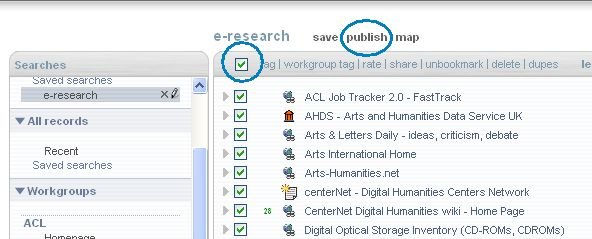
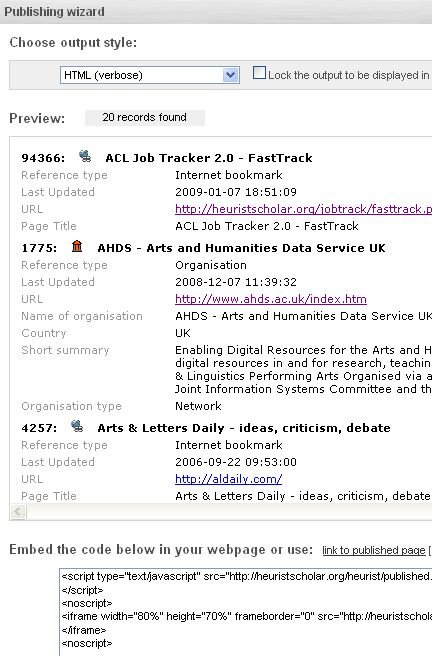
Embedding Code
In order to produce a snippet of HTML code that will be used for publishing a search, a search has to be saved. All of the previously saved searches are available from the Searches list on the left hand side. Once the search is saved it will be automatically added to the list. Previously saved searches can be loaded for publishing purposes.
Output Styles
Search results can be published and presented using stylesheets. The preconfigured output styles are:
Create a New Stylesheet
At present this can only be done by uploading stylesheet file to a designated directory, i.e. "stylesheets" in Heurist. Send the following coding in a file to the :
Include the following code in the stylesheet sent to the system administrator:
<!-- begin including code -->
<xsl:comment>
<!-- name (desc.) that will appear in dropdown list -->
[name]Name of style[/name]
<!-- match the name of the stylesheet (no extention)-->
[output]filename[/output]
</xsl:comment>
<!-- end including code -->
For example:
The stylesheet that renders text in Harvard Output Style, and the file is called newharvard.xsl. The following text is used so that the name of the stylesheet will appear in the dropdown list, the filename will be referenced upon its selection:
[name]Harvard Output Style[/name]
[output]newharvard[/output]
Publishing Wizard
Heurist Publishing wizard allows you to publish a search in a number of output styles:
HTML (default)
Generic XML
EndNote XML
Harvard Style Bibliography
Archaeology Website Style
EndNote REFER (old)
Bibliography (old)
Publishing a search - Step by Step Guide
To publish a search:
1.
After performing a search with a search query, go to a right hand-side menu
Export → Publishing Wizard
(Takes you to a Publishing Wizard)
2.
Save your search. From now on the search will be available in the Published Searches list.
3.
Default output style of the published search is HTML. Play around with Output Styles available (the Preview, Embedding Code and Direct Link will change accordingly). Choose appropriate style.
4.
Copy-paste code from "Embedding Code" textbox or link text to your web page.
Linking published search to an external XSLT stylesheet
Code: