|
Saved Searches
|
  |
|
Saved Searches
|
|
Saved Searches:
Create a Saved Search:
Why Use Saved Searches?
Saved searches appear as links on your home page which load commonly used subsets of your bookmarks. They can be used for quick access to commonly used resources, to publish class reading lists, bibliographies for a paper or related links lists for a research project. For example:
Create a keyword for each class taught (eg. ARPH3920), for each paper being written (eg. JRA3) or for each research project (eg. LWH). Use these codes to bookmark relevant references and save a search for each of these keywords as a Saved search. A list of hyperlinks will appear on the HEURIST home:
Saved searches:
Favourites x
LWH x
ARPH3920 x
JRA3 x
How to Create Saved Searches
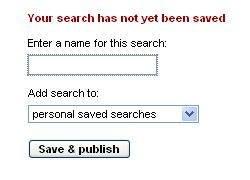
To create a saved search, simply carry out a search to find the set of bookmarks you wish to save, type a name in the box next to Save current search as: and hit the Save button.
Favourite search
Your Favourites saved search is loaded every time you go to the HEURIST home page. It is a search for all those references tagged with the tag Favourite or Favorite, which can be inserted automatically by clicking Add to Favourites on the bookmark editing page.
See: Live Bookmarks