|
Harvest Weblinks
|
  |
|
Harvest Weblinks
|
|
Harvest Weblinks
The toolbar and bookmarklet both allow you to capture URLs from a web page. Often directories of resources are available as web link pages, allowing rapid collection of a broader collection of web links which can then be filtered according to your own tags. This function is particualrly useful for harvesting a set of resources discovered by a web search such as Google.
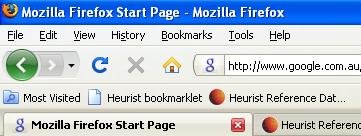
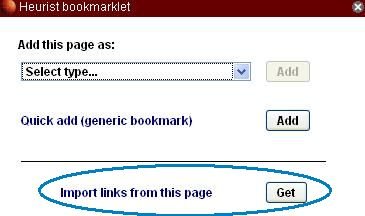
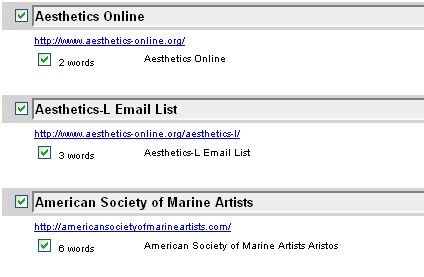
With a web page containing web links displayed, click on Get web links in either the toolbar or the bookmarklet, choose the links you want, and they are added as bookmarks in your collection (My Records). You can also harvest the text associated with each link into the scratchpad as a source for your notes or annotation of the link.
Import Your Browser Bookmarks
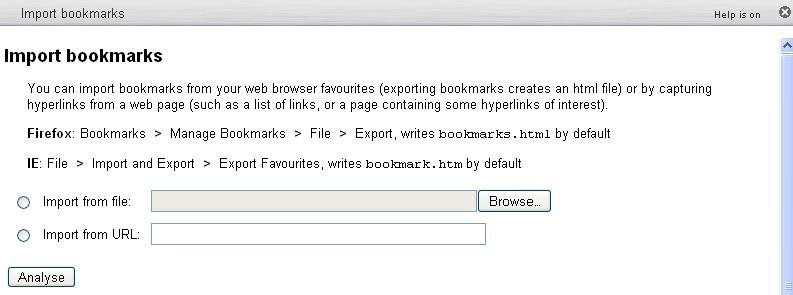
All browsers can save their bookmarks as an HTML file (generally bookmarks.html) which can be imported with the web links harvester. The file can either be opened in a web browser and harvested via the toolbar or bookmarklet, or you can open the file directly (see next). To create the file in some common browsers (older versions may use slightly different commands):
Importing Weblinks From a File
HTML files or web pages can be opened directly with the Harvest Web Links function on the My Heurist page, which allows you to enter the URL or browse to the file.
Harvest With Bookmarklet (on Toolbar)
|
|
|
|
|
|
Importing Book
|
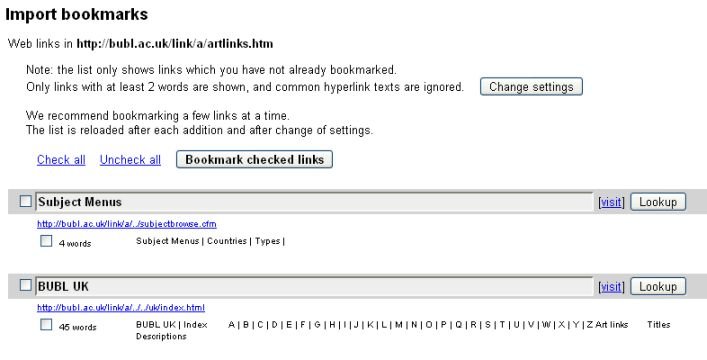
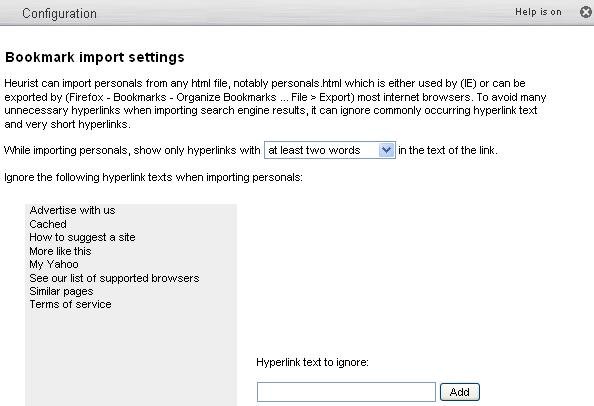
Once the Get web links command has been triggered or a web page or file selected, Heurist will identify any URLs which you have not yet bookmarked A set of filters are applied by Heurist to remove any short or repetitive functional web links such as more like this, My Yahoo, Similar pages, Terms of Service, cached, shopping cart, I'm feeling lucky etc.). The bookmarklet can be configured to filter out links which are purely part of the page functions, or which are likely to be less useful (titles with one or two words for example). See Harvester Configuration |
|
|
We recommend selecting a few web links at a time to bookmark, rather than selecting everything. |
|
|
This selective approach allows different sets of links to be tagged with different tags. |
|
|
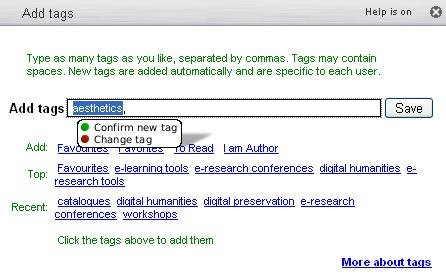
The tag-addition dialogue will be displayed for each set of links added. |
|
Disambiguation Step
If similar records already exist, the page will be redisplayed to allow you to decide whether the existing records should be used, as shown below. The user can check and deside whether it is the same (and uncheck the bookmark) or if it is different and select the radio button "This page isn't the one I want, add a new URL to the database" and click the Bookmark checked links button.